

How It Works
When a customer subscribes, Suby:1
Processes the first payment
The first charge is collected immediately at checkout across the customer’s chosen method, card, bank, Apple Pay, Google Pay, or stablecoin.
2
Calculates taxes
Applicable taxes are calculated and collected automatically based on the customer’s location.
3
Delivers access
Access is granted based on your configured integration, PayLink, API, Discord, or Telegram.
4
Renews automatically
The subscription renews at the end of each billing cycle. Failed payments trigger dunning automatically.
5
Fires a webhook
A
subscription.created event is sent to your server if you have a webhook configured.Use Cases
SaaS & Tools
Monthly or yearly access to software, APIs, or developer tools.
Discord Communities
Recurring access to paid Discord roles and private channels.
Telegram Groups
Subscription-gated Telegram groups and channels.
Content & Newsletters
Paid newsletters, content libraries, and creator memberships.
Billing Cycles
Suby supports any billing cycle, weekly, monthly, every 3 months, every 6 months, or yearly. You set it when creating your product.Seats and licences
A subscription can hold several units · seats, licences, accounts. The plan’s price is the price of one unit: a licence at $10/month held three times bills $30/month.- At checkout you set how many with
quantityon the checkout session · or the customer picks it, within your bounds, if you turned on Customers choose the quantity on the plan (adjustableQuantity: true). - Adding units is charged right away, prorated for what is left of the current period, on the subscription’s own card · the customer never re-enters it, though their bank may ask them to confirm, in which case they pay the difference on the checkout page and that card becomes the subscription’s. On a crypto subscription they pay the difference on the checkout page. The next renewals bill the new total.
- Removing units takes effect at the next renewal · the customer keeps what they already paid for until then, and the next cycle bills one unit less.
- A customer who already pays a lower price keeps that unit price when they add units, even if you raised the product’s price since.
POST /v3/subscriptions/{id}/change-plan and quantity · price it first with change-plan/preview. With Customers choose the quantity turned on, customers can also change it themselves from their subscription page (the Manage subscription link in every receipt); it is off by default, so out of the box only your app does. Listen to subscription.updated: it fires when the new quantity takes effect, with quantity on the subscription.
A license key granted by the product follows the quantity: its activation limit is the one you set, per unit. When units are removed, the most recently activated machines beyond the new limit are deactivated at the renewal.
Dunning
Each subscription renews on its own card: the one it was taken on, or the one the customer last set from its manage page · not whichever card they used most recently elsewhere. Access never lasts longer than the period that was paid for. If a card renewal is declined, access is revoked right away and Suby retries the charge over the next 3 days, notifying the customer to update their payment method. If a retry succeeds, access comes back automatically; if none does, the subscription ends. Crypto subscribers are reminded 48 hours before the due date (24 hours for plans shorter than a month). Without payment by the due date, access is revoked; the subscriber still has 2 days to renew the same subscription and get their access back.Setting Up a Subscription
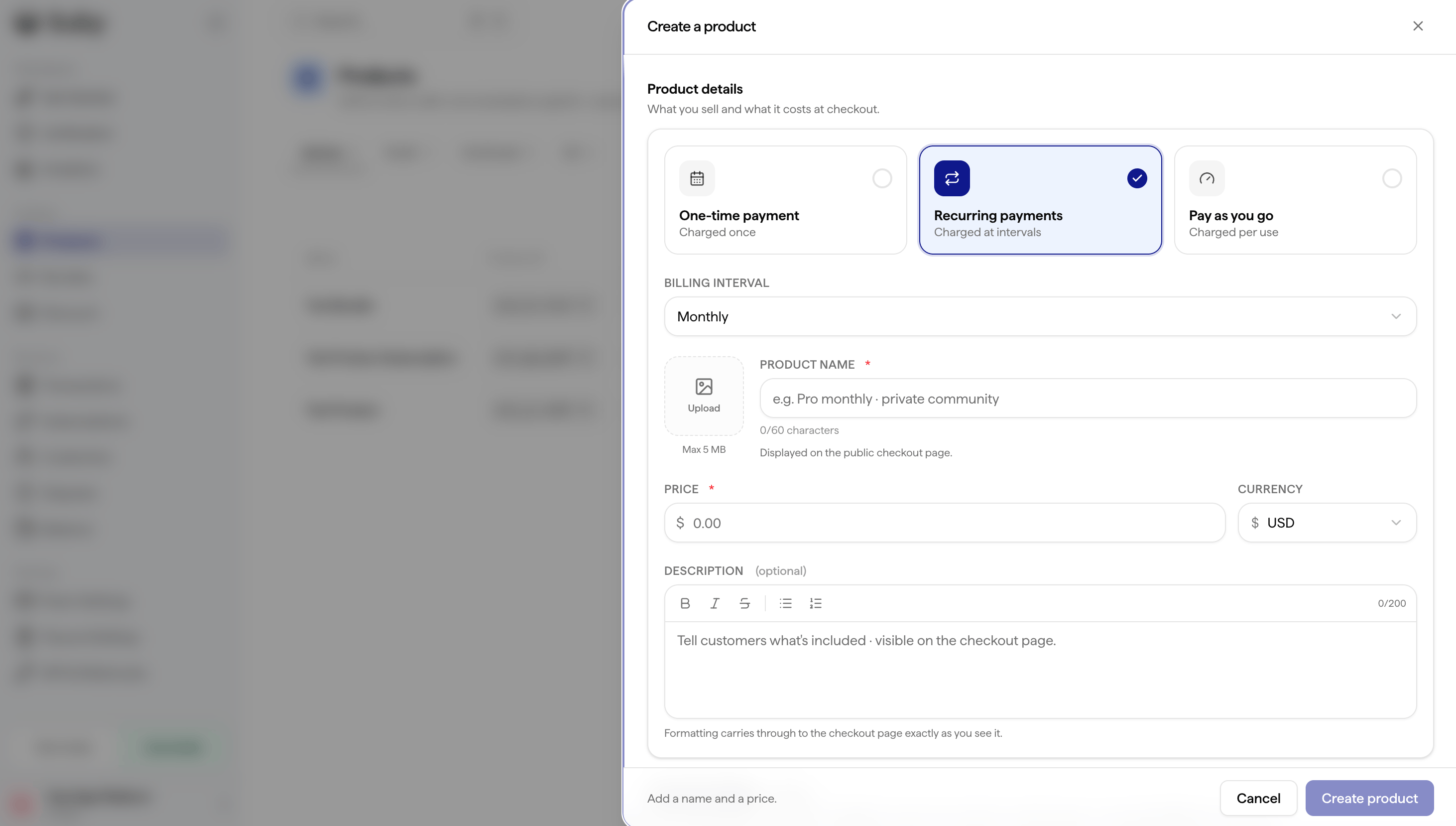
Setup works the same way as one-time payments, with one difference: you also select a billing interval.1
Go to Catalog
In your dashboard, navigate to Catalog, then Product, and click New product.
2
Fill in the basics
Enter your product name, image, description, price, currency, and select the billing interval (weekly, monthly, yearly).
3
Set access delivery (optional)
Choose how access is delivered once payment is completed: Discord, Telegram, digital files, license key, or external link.
4
Configure additional options (optional)
- Apply a discount code
- Choose which payment methods are available for this specific product
- Add custom fields to collect information from the customer at checkout
- Set a success URL and cancel URL to redirect the customer after checkout
5
Save and share
Your subscription is live instantly.
Via API
Full API Reference
Endpoints, parameters, and response objects for Checkout Sessions.